漏斗
分析漏斗提供了App完全自定义的用户转化路径。
1.入口
- 登录。
- 选择所需的帐户和应用程序。
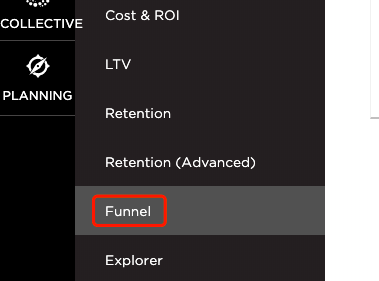
- 选择“Analytics”>“漏斗”。
2.分析页面工具
有关此分析页面可用工具的更多信息,例如日期字段,导出受众,共享页面以及应用同类群组和过滤器,请参阅我们的分析页面工具支持文档。
3.漏斗概述
Think of the Funnel tool within TrackingIO Global as an actual funnel. The first event selected will serve as a starting point by which all subsequent events will be measured. Events should be selected to follow the “user paths” through the app.
Events are displayed on the left in descending order. The Event Totals, Percentage of previous event, Percentage of users lost from funnel and the Percentage of users still within the funnel are displayed on the right.
NOTE:When leveraging Cross App functionality, the event data that is consistent between each app of the App Name filter will be displayed within the Funnel. For more information about adding apps using the filter feature, refer to ourAnalytics Page Toolssupport documentation.
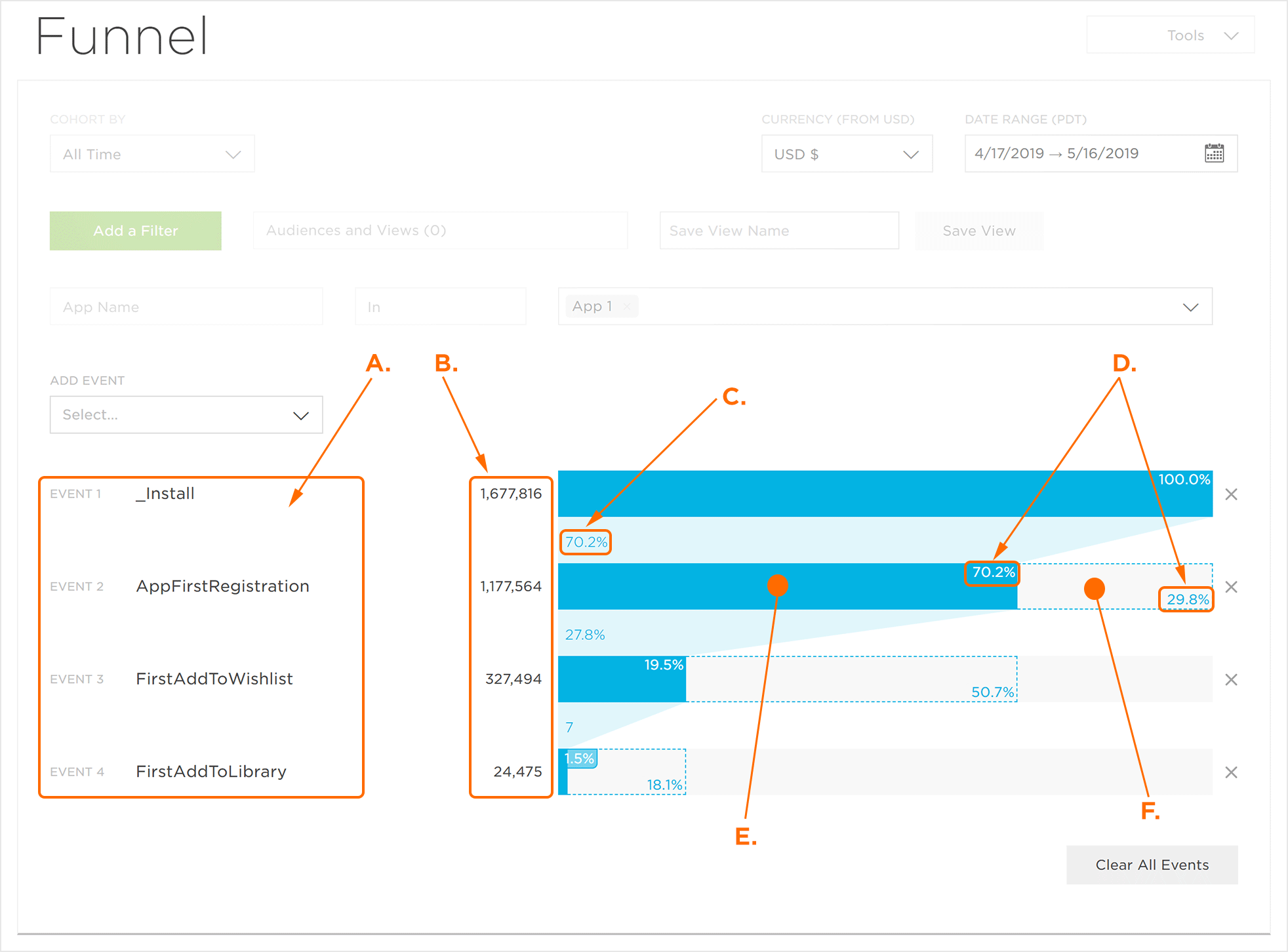 A. Selected Events
B. Unique Users
C. Funnel Percentage of Previous Events
D. Category Percentage
E. Users in Funnel
F. Users Lost from Funnel
4.Adding Events to the Funnel
By default, no events are active when the Analytics Funnel is initially loaded.
NOTE:When leveraging Cross App functionality, only the events that are consistent between each app of the App Name filter are eligible to be displayed within the Funnel. For more information about adding apps using the filter feature, refer to ourAnalytics Page Toolssupport documentation.
From theAdd Event drop-down menu, Select the desired initial event.
NOTE:Once the first event is added, a graphical representation of the event quantity and percentage will be generated. The initial event will always display a percentage value of 100%, and every subsequent event will be based upon its relationship to the initial event.
NOTE:In order to visualize high volumes of data quickly, Kochava utilizesTheta Sketches which are based off unique users as the basis for Funnel visualization. For precise numbers use the Explorer tool.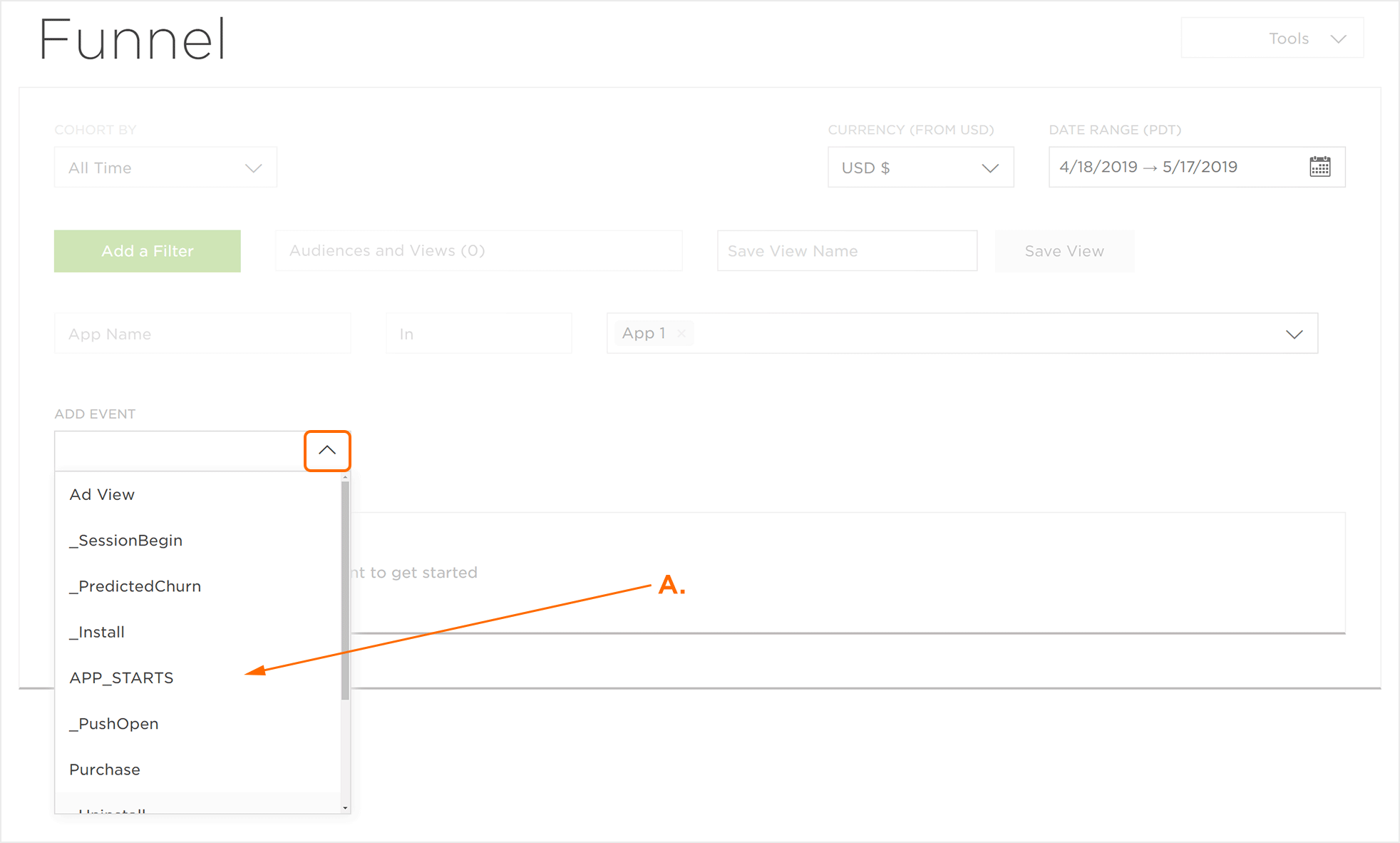
A. Select the desired initial eventFrom theAdd Event drop-down menu, Select any additional desired event.
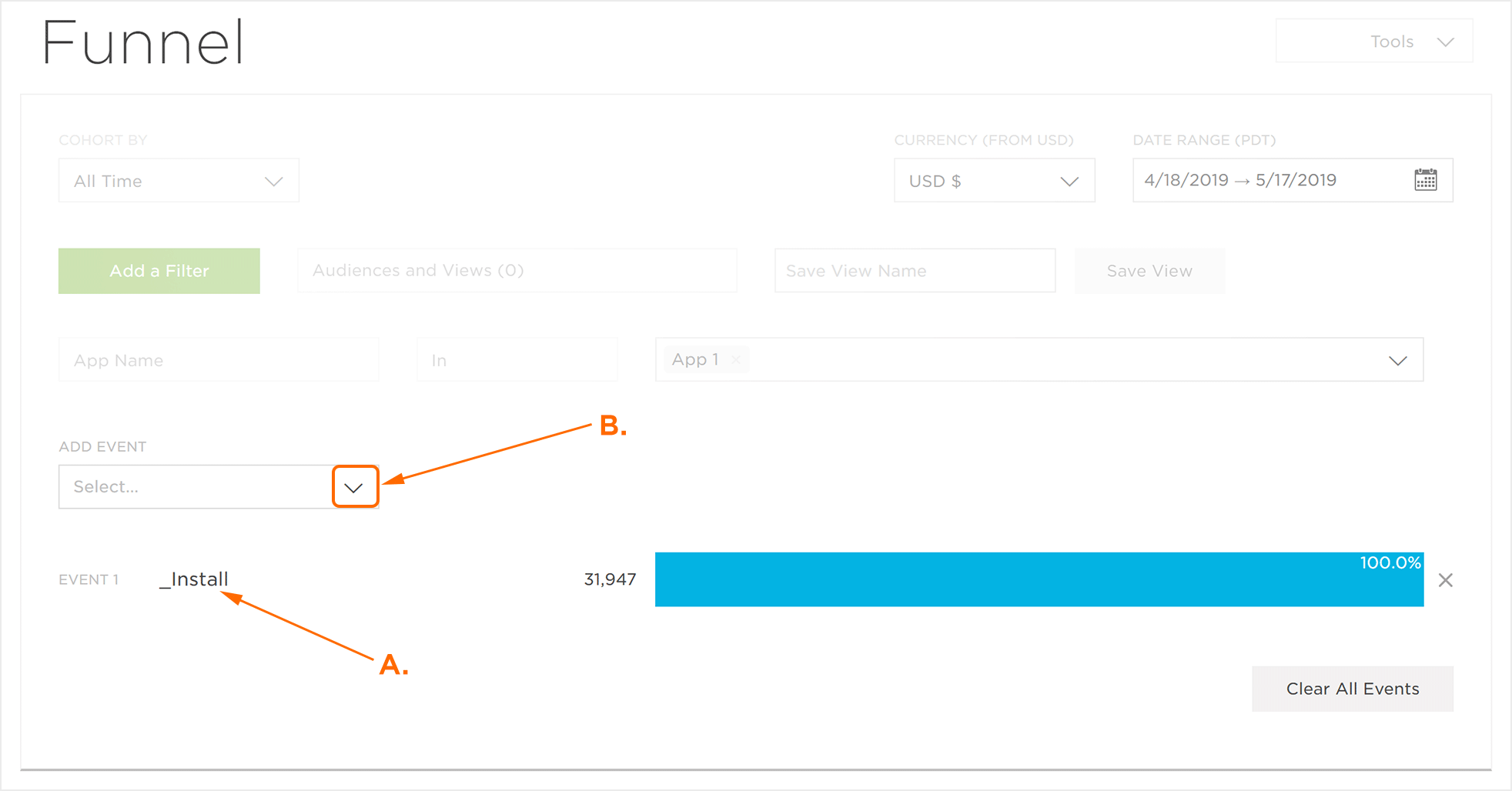 A. Initially selected event
B. Click to add additional EventsRepeatStep 2as needed until all desired events are added.
5.Removing Events from the Funnel
Removing events from the Funnel can be accomplished in one of the following ways:
- To remove one event at a time, Click on the “X” next to the event you want to remove.
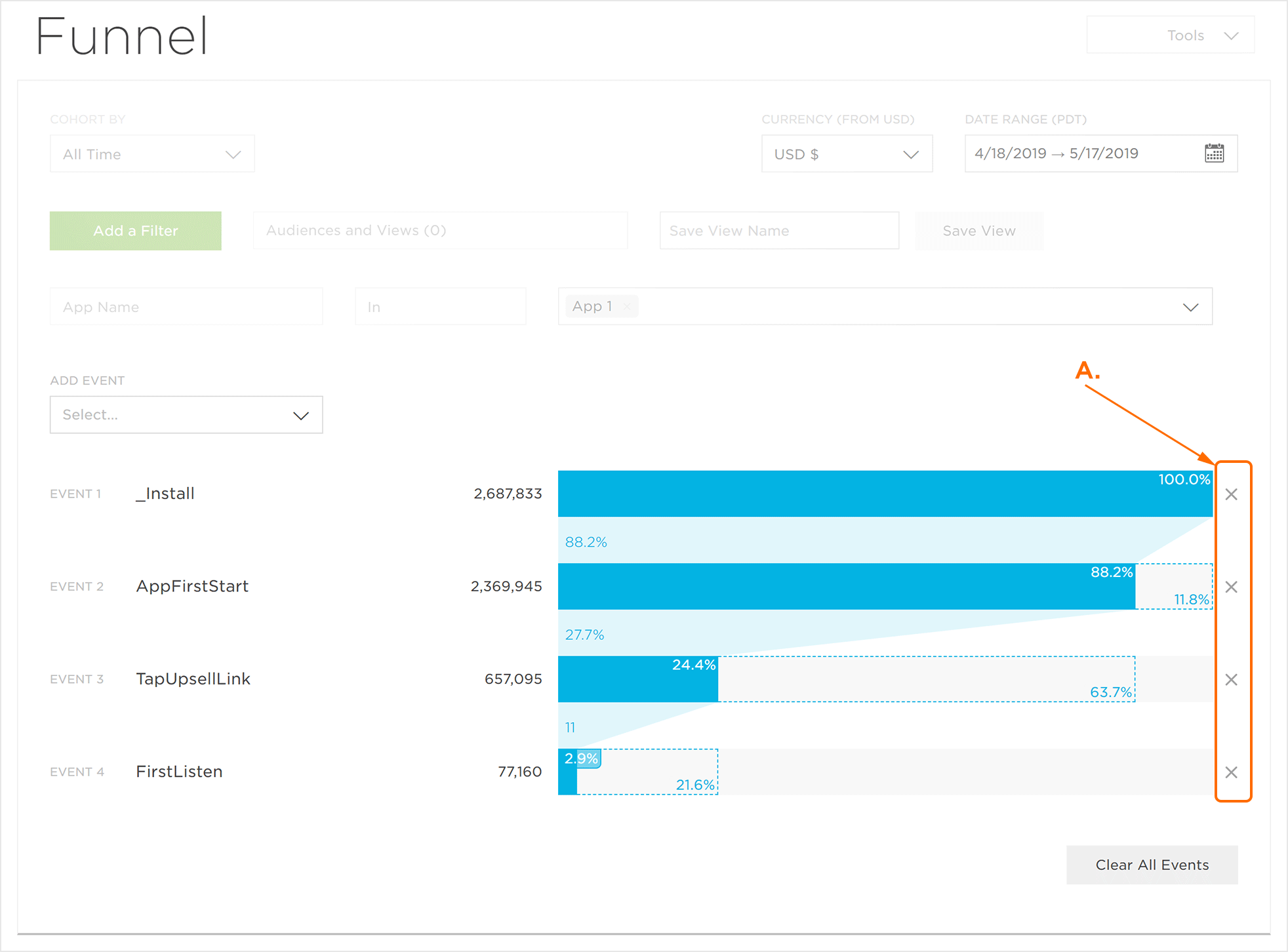 A. Click on the “X” to remove a single event
 - To clear all events Click Clear All Events.
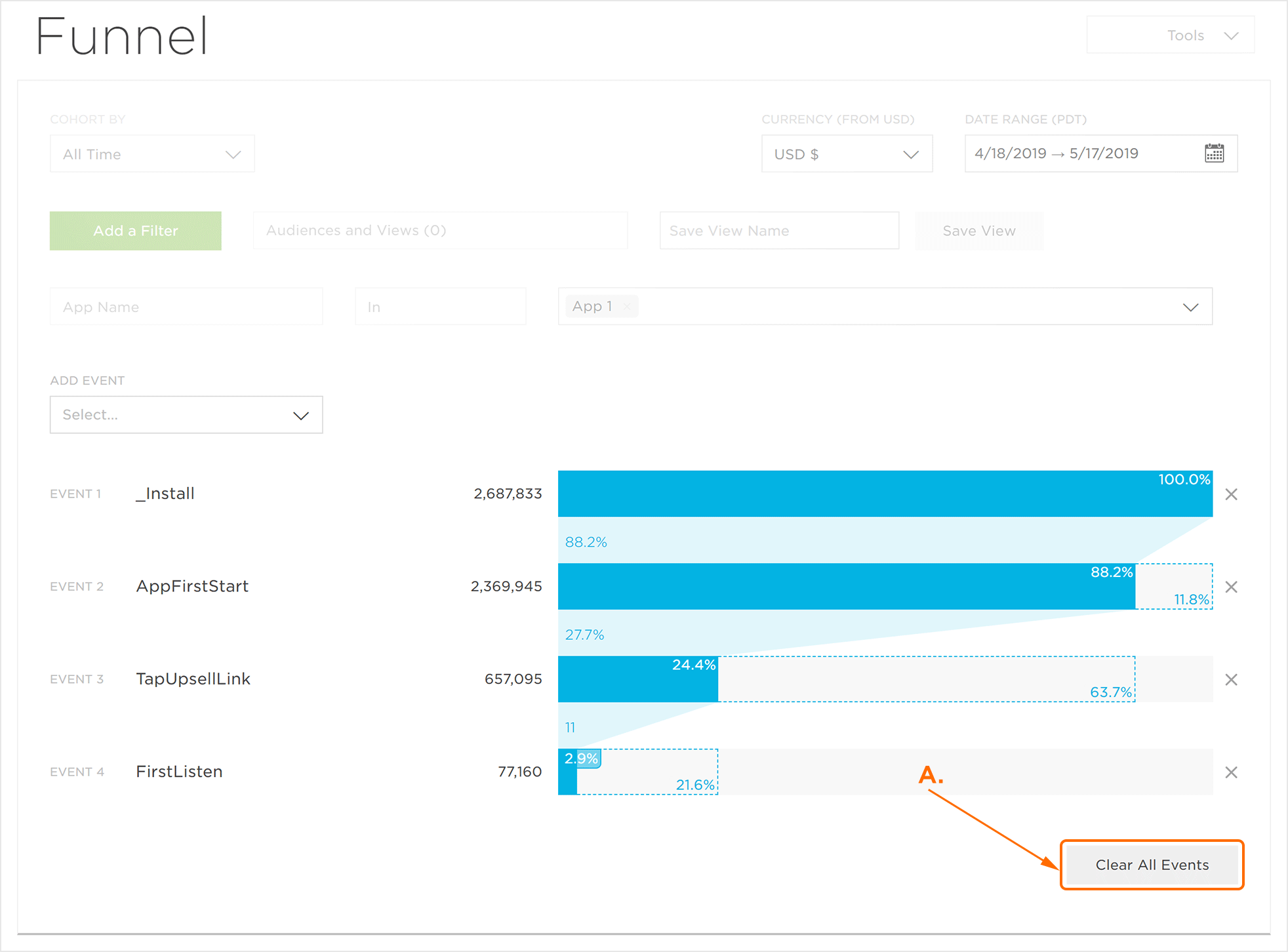 A. Click to clear all events
6.Explore the Funnel
The Funnel events can be further analyzed through the use of the Explorer page.
- Determine the Event to explore.
- Click on the blue section (users who met the criteria) or the white section (users who fell outside the criteria):
a.“漏斗>事件>设备>探索”
b.事件>从漏斗中丢失>探索
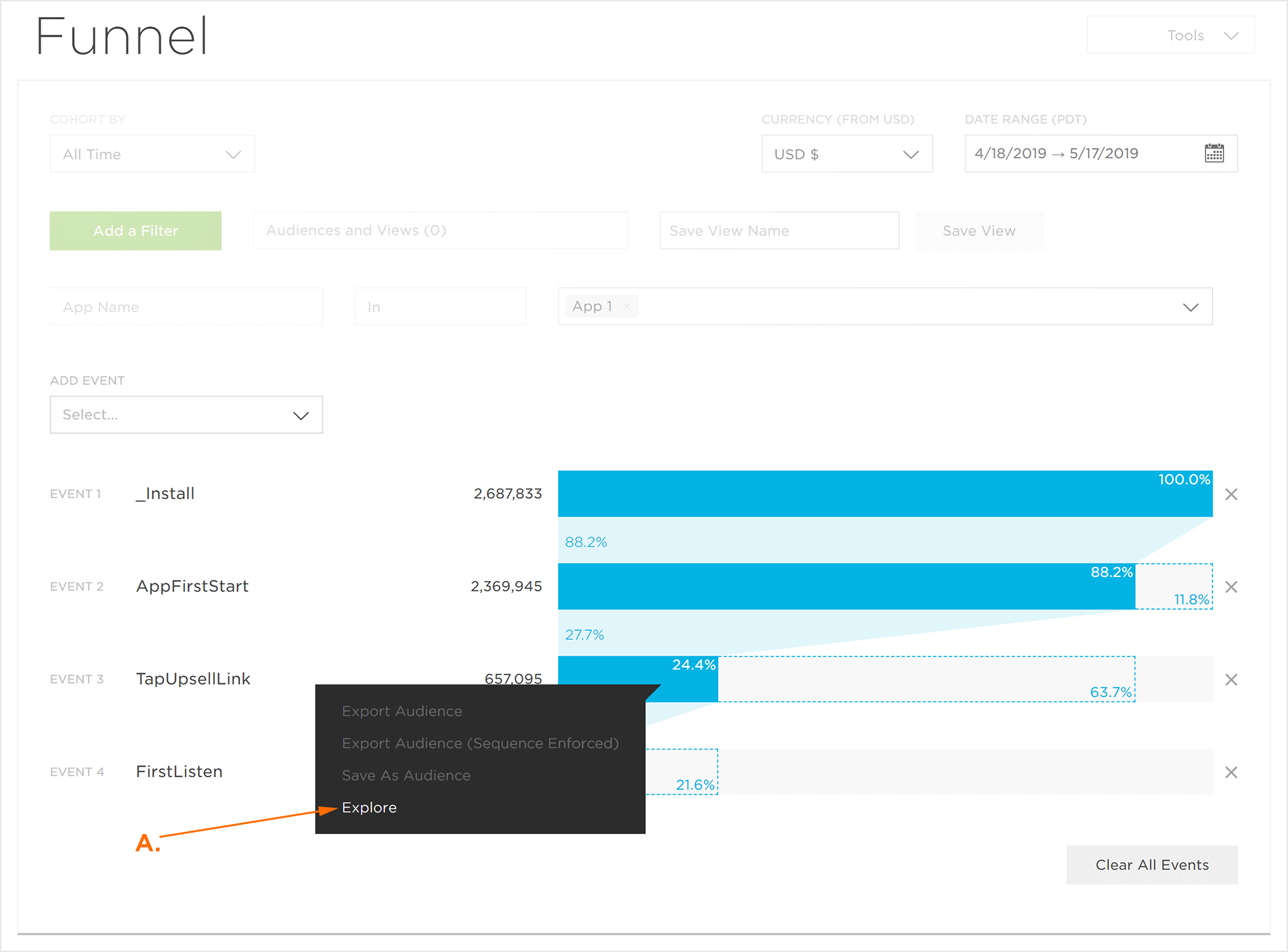 A. Click Explore to navigate to the Explorer with current Funnel settings
7.导出受众
The device IDs for both the users who fell within the funnel event and those that fell out of the funnel events may be exported or saved to be used with Engagement campaigns.
注意:为了在Engagement广告系列中使用受众群体,必须启用“推送”。有关启用Push的更多信息,请参阅我们的创建/编辑应用程序支持文档。
NOTE:TrackingIO Global will generate a list of the device IDs and export that list in a CSV format. If multiple App data is being displayed within Analytics, a zip file will be created with each app’s device IDs listed in separate CSV files. For more information about adding additional app data to Analytics, refer to the Filter ssection below.
- Determine the set of Device IDs to export.
Click on either the blue section (users who met the criteria) or the white section (users who fell outside the criteria):
a.事件>渠道中的设备>导出受众
事件>从漏斗中丢失>导出受众.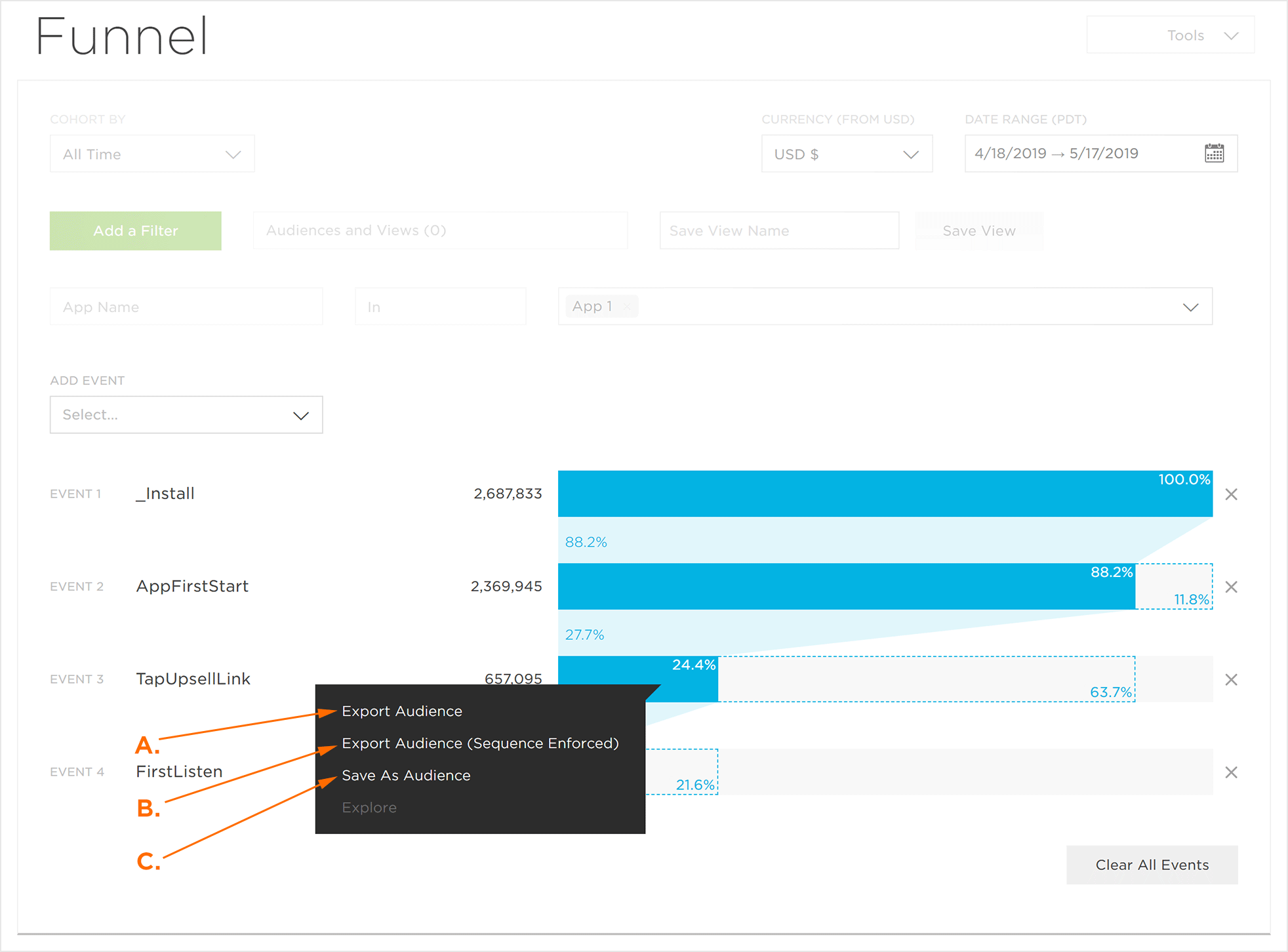 A.在渠道>导出受众内部单击以导出位于渠道内的设备。 B.在渠道内单击>导出受众(序列强制执行):生成的设备ID可能与使用未强制执行事件序列顺序的Theta草图构建的漏斗视图不同。 C. Click inside the funnel>Save as Audience to save the audience segment to Engagement.
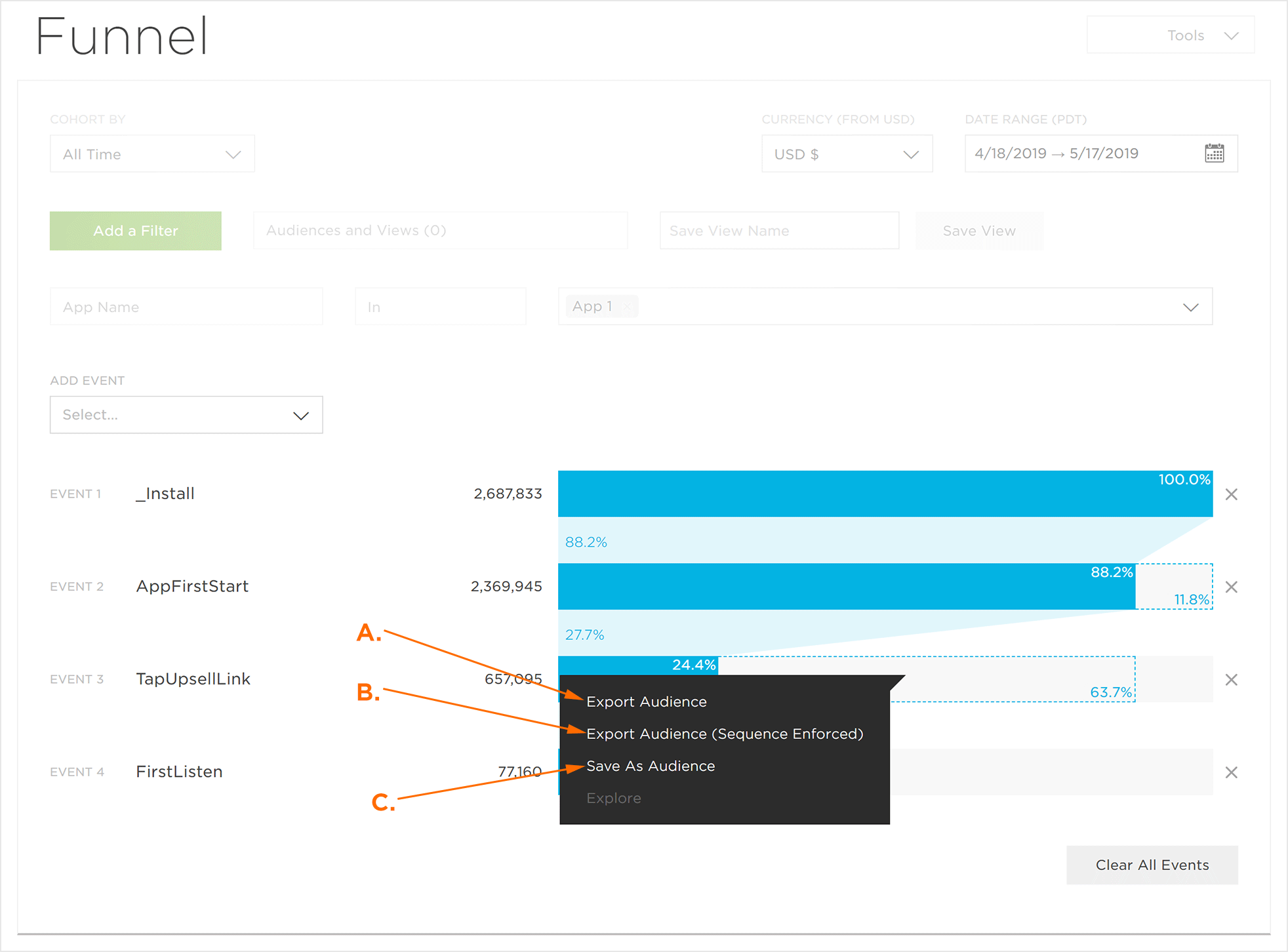 A.在渠道>导出受众群体外部点击,以导出位于渠道外的设备。 B.在渠道外单击>导出受众(强制执行序列):生成的设备ID可能与使用未强制执行事件序列顺序的Theta草图构建的漏斗视图不同。 C. Click outside the funnel>Save as Audience to save the audience segment to Engagement.
NOTE:Once Export Device IDs has been selected, a pop-up window will appear notifying of the Device ID export, the email address which will be sent a link to the Device ID list and a button allowing the status of the export to be checked.
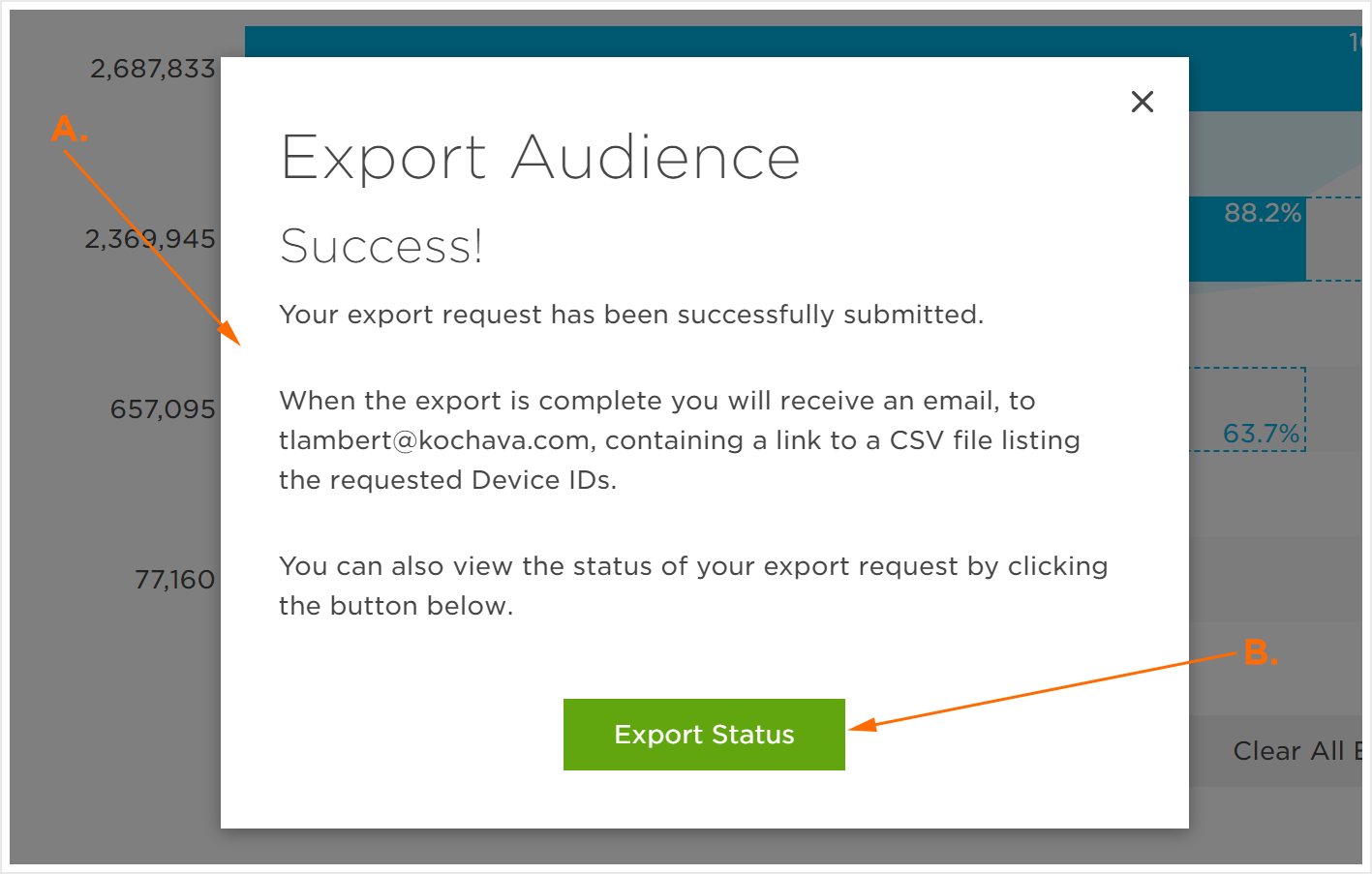 A. An email will be sent to the displayed email with a link to the CSV file containing the desired device IDs.
B. Click onView Export Status to see the status of the export.
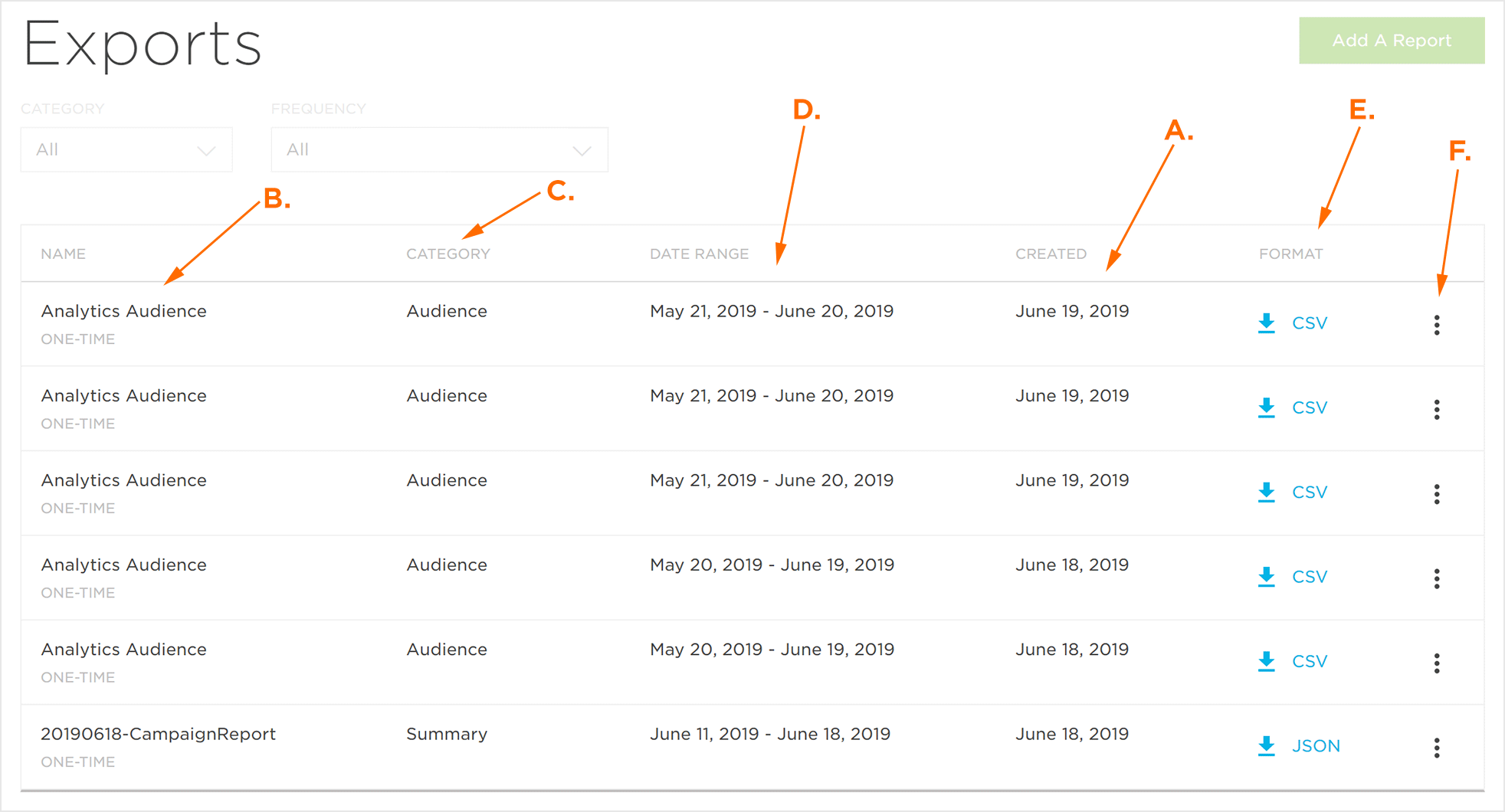 A. The date the Device ID export was submitted.
B.观众名称。
C.出口类别。
D.出口的日期范围。
E.出口的格式。
F.导出工具菜单。
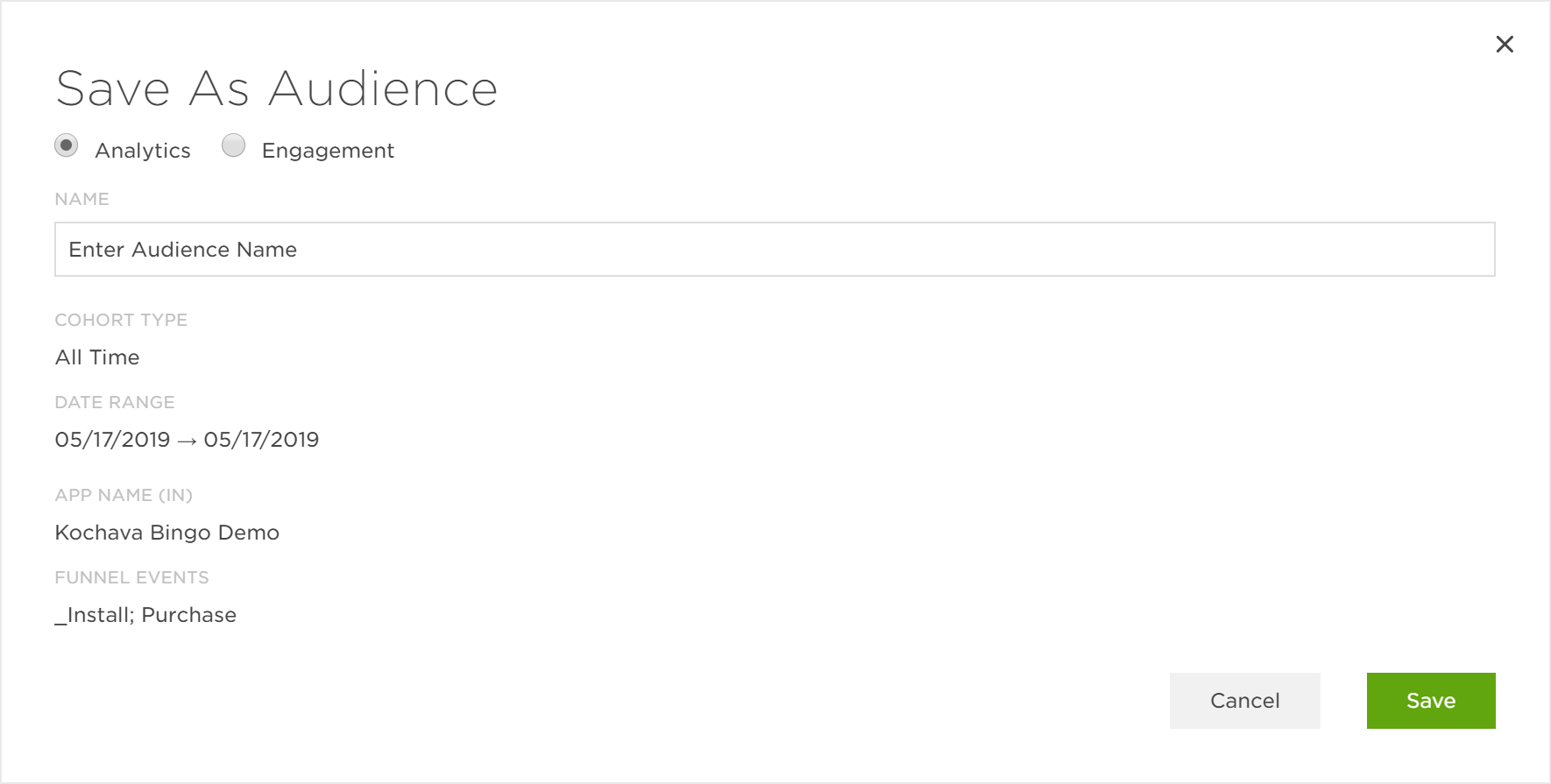
NOTE:Once Save as Audience has been selected, a pop-up window will appear providing the Engagement Audience settings. For more information about saving an Engagement Audience, refer to our Engagement Audiences support documentation.