创建一个Google Reengagement 活动
以下文档定义了创建Google AdWords重新参与广告系列的过程。
帐户和应用程序
如果尚未创建,请创建一个新的Google广告系列。有关创建广告系列的详细信息,请参阅我们的Google Integration支持文档。
最佳做法:为了帮助广告系列组织,建议创建一个分段来重新接纳。
输入唯一的Tracker Name。
选择Tracker Type>Reengagement。
选择Media Partner>Google Adwords。
选择Destination URL类型>Custom。 (默认设置)
输入Deeplink。 (可选的)
- 输入任何自定义参数。 (可选的)
- 输入定价。 (可选的)
- 输入希望触达reengagement Event。
- 如果不需要创建其他跟踪器,请单击保存。
- 如果需要创建,请单击保存并添加其他跟踪器。点击保存并创建回发。 (直接导航到“合作伙伴配置”页面)
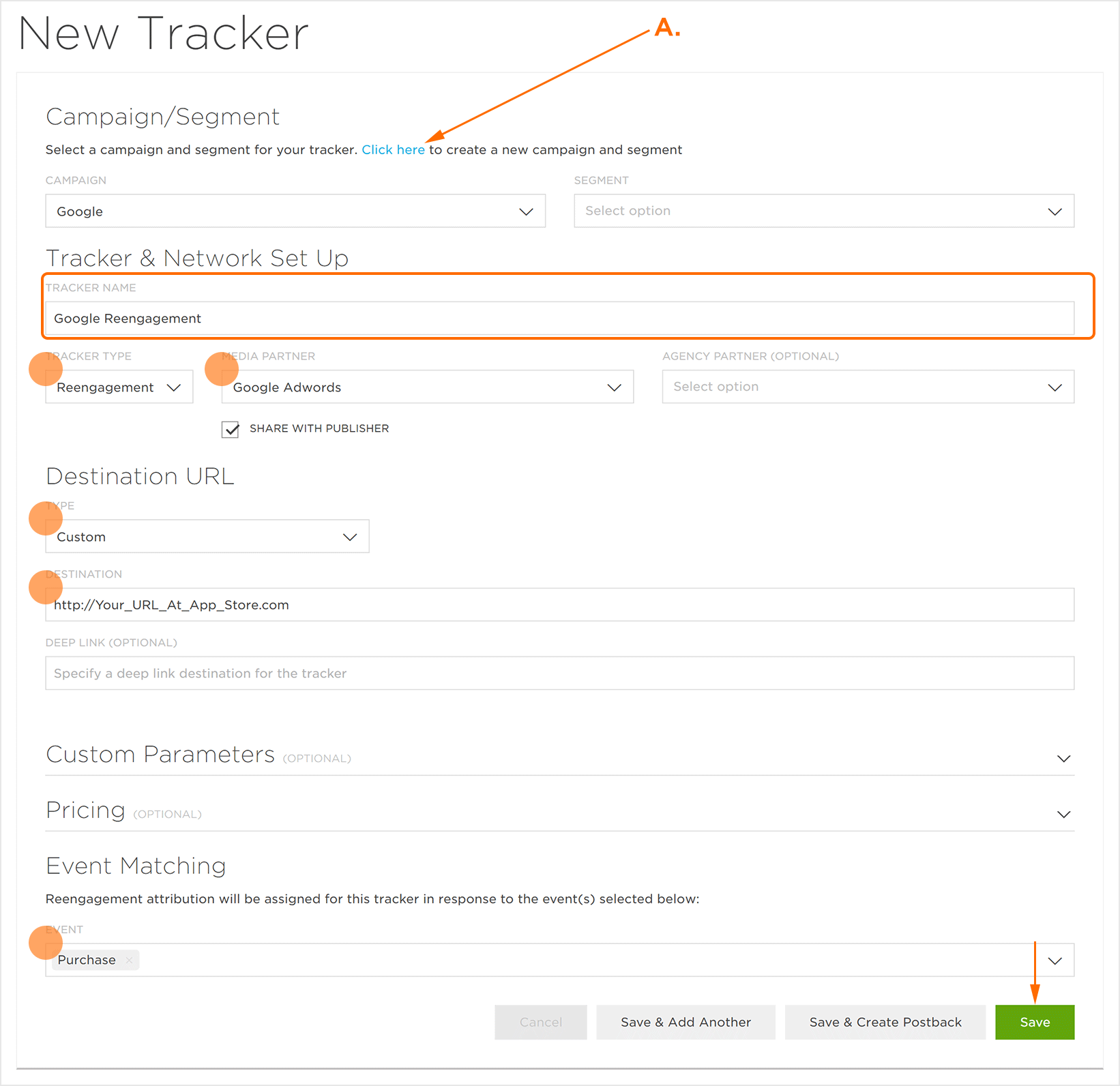 A.活动和细分选择/创建部分。 B.点击“+”添加reengagement事件。
1.创建Reengagement回调
最佳做法:Google强烈建议营销人员启用TrackinIO Global正在跟踪的任何和所有安装后事件。任何已配置的事件都会将事件的“全部”事件发送给Google。
最佳做法:Google强烈建议安装后事件的工具来跟踪会话以及“deeplink”事件。
最佳做法:如果“Event Name”字段留空,将使用从应用程序接收到的原始事件名称。自定义事件可用于任何不符合Google预定义的应用程序事件类型之一的安装后事件。
发送到Google的安装后事件必须使用合作伙伴配置界面中的下拉菜单指定相应的GoogleApp事件类型。 Google有八种事件类型可供选择:
Custom
Session Start
In_App Purchase
View Item List
View Item
View Search Results
Add to Cart
eCommerce Purchase
U15 Parameter Mapping: sessions_played
注意:“自定义”事件可用于任何与Google预定义的应用事件类型不对应的安装后事件。
- 选择应用和资产>合作伙伴配置。
- 单击添加配置。
- 选择广告平台合作伙伴>Google Adwords。
- 点击开始。
- 找到所需的安装后事件,单击回调工具>编辑.
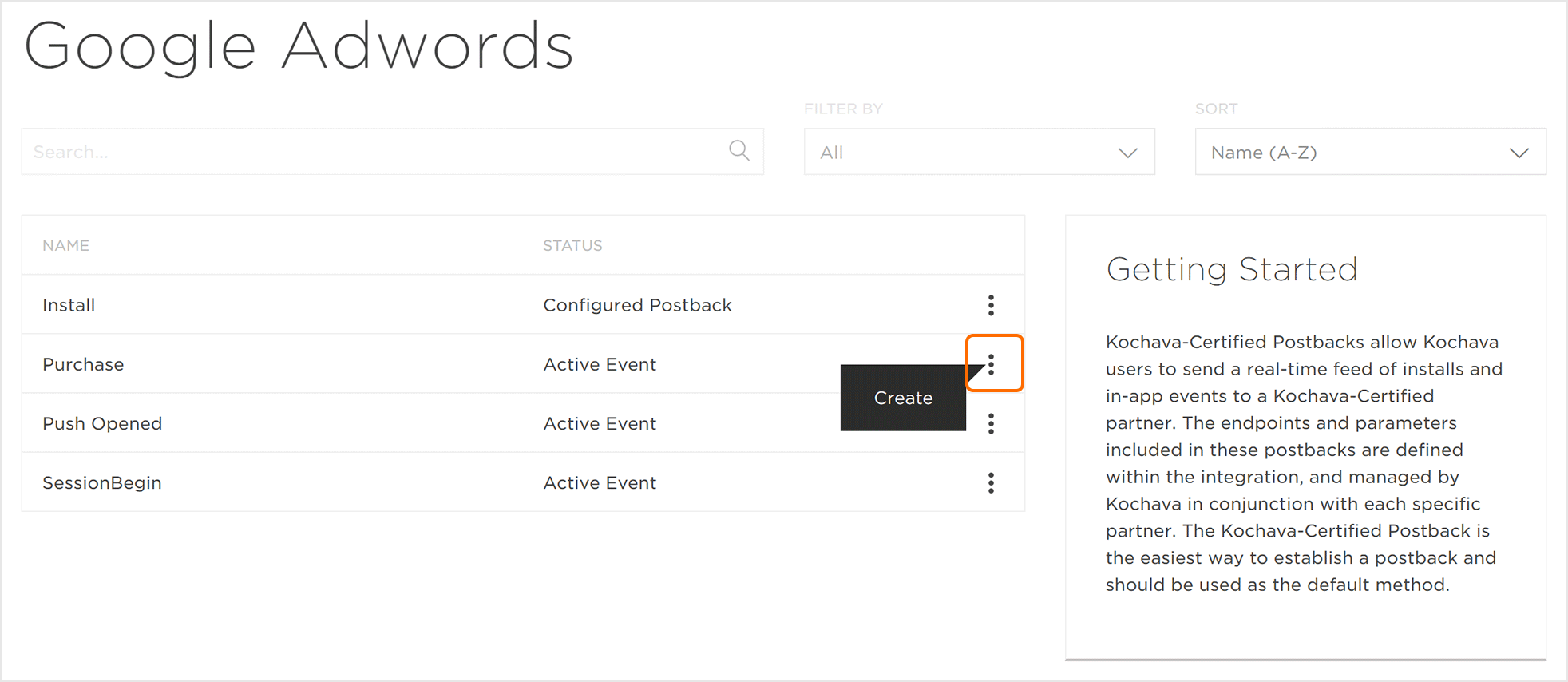
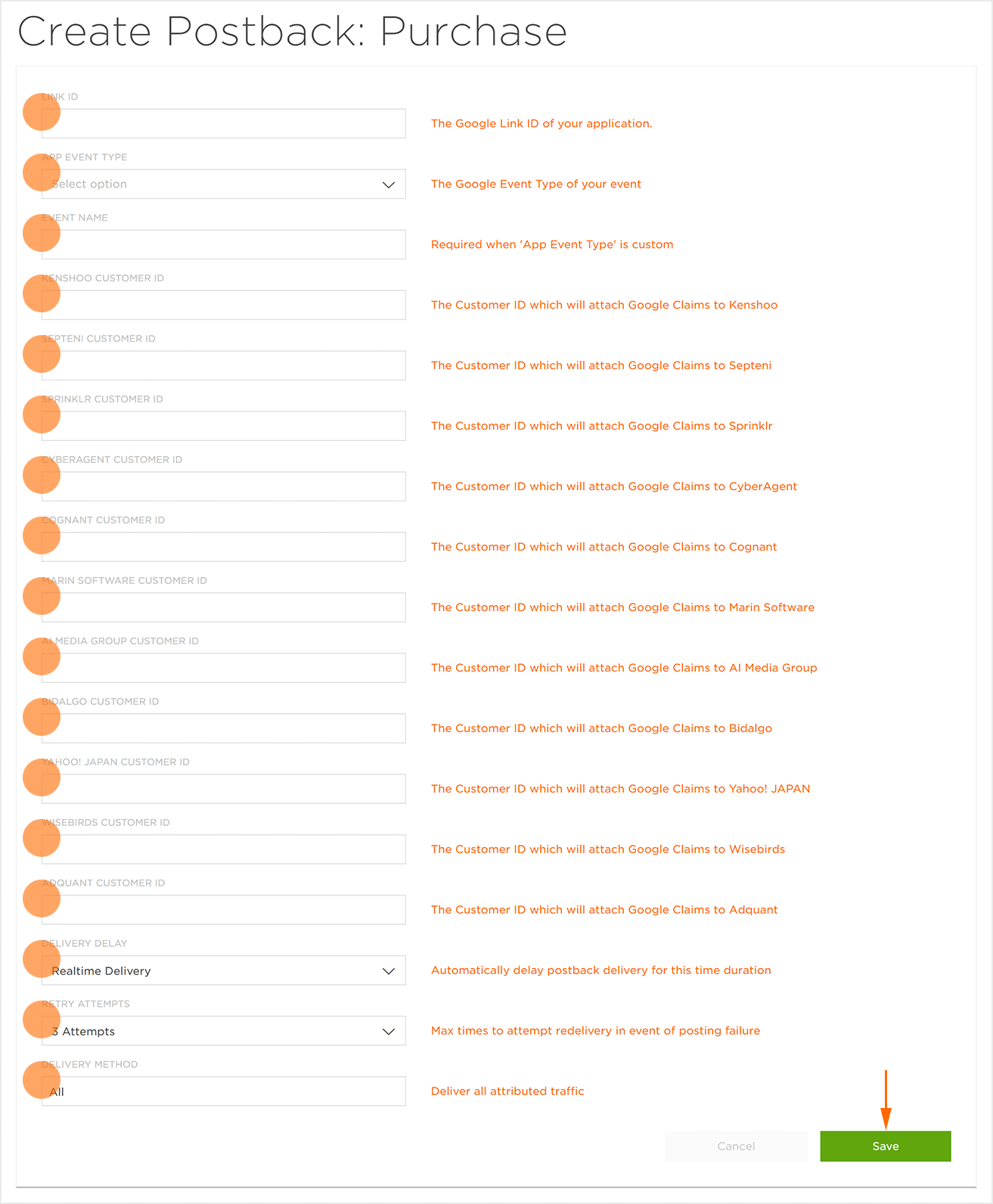
- 输入链接ID。
- 选择应用程序事件类型。
如果使用自定义事件类型,请输入事件名称。 (可选的)
注意:如果使用“自定义”事件标识并且“事件名称”字段留空,则默认情况下,TrackinIO Global UI中调用的事件将传递给Google。如果输入了事件名称,则该客户定义的名称将传递给Google。
Enter the Kenshoo Customer ID. (optional)
Enter the Septini Customer ID. (optional)
Enter the Sprinkler Customer ID. (optional)
Enter the Cyberagent Customer ID. (optional)
Enter the Cognant Customer ID. (optional)
Enter the Marin Software Customer ID. (optional)
Enter the AI Media Group Customer ID. (optional)
Enter the Bidalgo Customer ID. (optional)
Enter the Yahoo! Japan Customer ID. (optional)
Enter the Wisebirds Customer ID. (optional)
Enter the Adquant Customer ID. (optional)
选择交付延迟。
选择重试次数。
注意:“交付方法”的默认设置设置为“全部”,无法修改。
单击保存。
2.Google Universal App Campaign for Engagement Setup
连接Google UAC 到Google Play:
- 登录 Google Ads Account.
- 点击 Tools>Setup>Linked accounts。

点击Google Play>Details.
a.如果GooglePlay开发者和广告账户还没有被连接,点击Link.
1.输入GooglePlay开发者管理员的Email地址. 2.单击**发送**。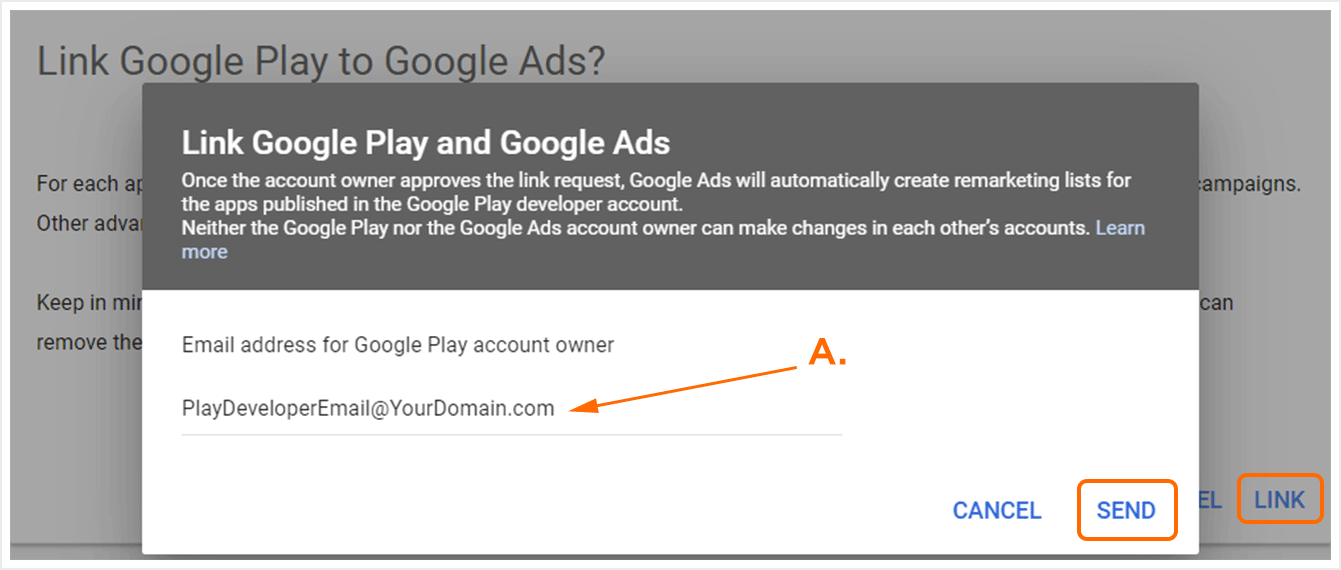**A.输入GooglePlay开发者管理员的Email地址**3.当GooglePlay开发者管理员已经批准这个请求,账户将被连接.b.如果GooglePlay开发者和广告账户已经被连接,点击“+”连接额外的账户.
1.输入GooglePlay开发者管理员的Email地址. 2.单击**发送**。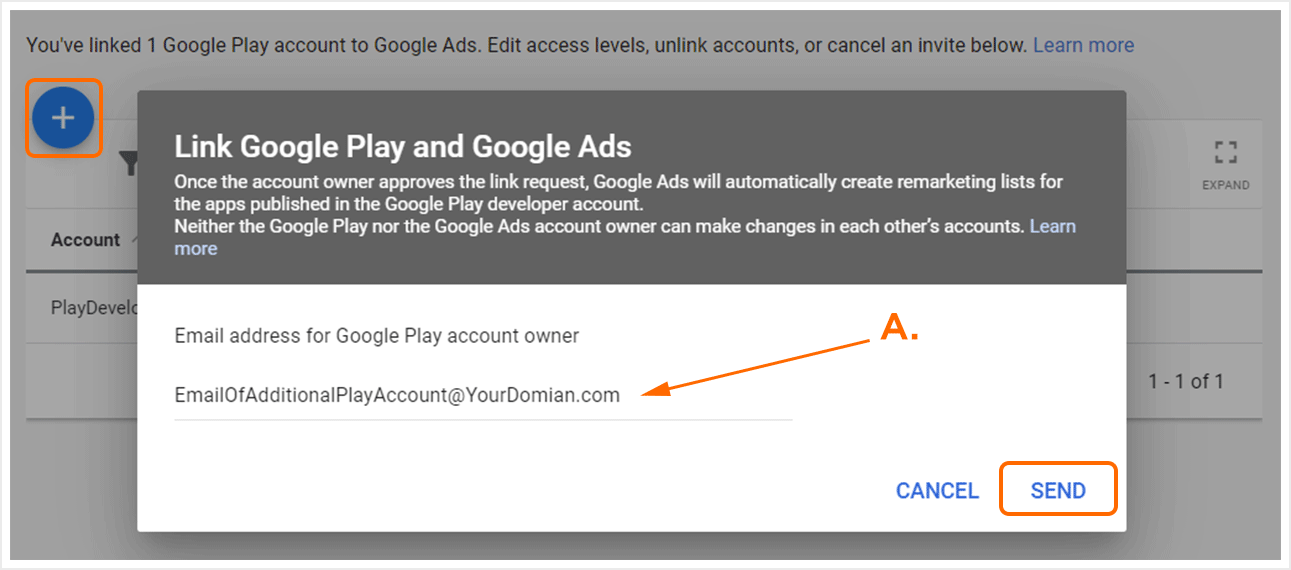**A.输入GooglePlay开发者管理员的Email地址**3.当GooglePlay开发者管理员已经批准这个请求,账户将被连接.
3.创建 Deeplink Event
要让Google跟踪UACe广告系列,Google要求广告客户拥有一个_deeplink事件,该事件包含该调用中包含的深层链接侦听器。一旦正确完成,TrackinIO Global将从_deeplink事件元数据中解析出GCLID(Google Click Identifier)并将其传递给Google。 GCLID是附加到deeplink URI末尾的参数,可帮助Google优化UACe广告活动。
警告:在启动Google UACe广告活动并且TrackinIO Global可以收到Google Click ID(GCLID)之前,开发人员首先需要在TrackinIO Global SDK中或通过Server-to-Server检测标准的_Deeplink事件。当检测到规范的事件名时,_Deeplink事件将在事件有效负载的URI字段中包含GCLID。
选择应用和资产>合作伙伴配置。
- 单击添加配置。
- 选择广告平台·合作伙伴>Google Adwords。
- 点击开始。
- 找到Deeplink安装后事件,单击回调工具>编辑.
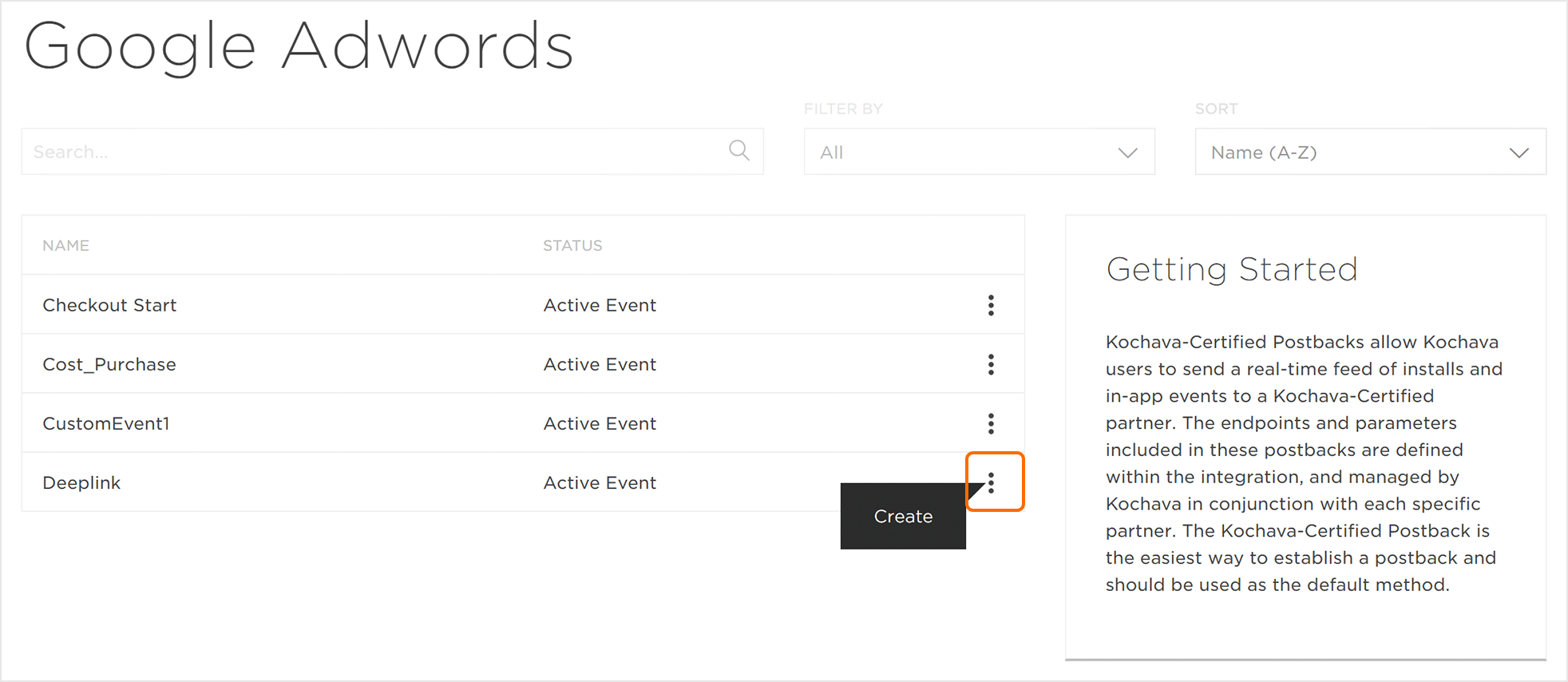
- 输入链接ID。
- 选择应用事件类型>会话开始。
- Enter the Event Name. (optional)
- Enter the Kenshoo Customer ID. (optional)
- Enter the Septini Customer ID. (optional)
- Enter the Sprinkler Customer ID. (optional)
- Enter the Cyberagent Customer ID. (optional)
- Enter the Cognant Customer ID. (optional)
- Enter the Marin Software Customer ID. (optional)
- Enter the AI Media Group Customer ID. (optional)
- Enter the Bidalgo Customer ID. (optional)
- Enter the Yahoo! Japan Customer ID. (optional)
- Enter the Wisebirds Customer ID. (optional)
- Enter the Adquant Customer ID. (optional)
- 选择交付延迟。
- 选择重试次数。
- 单击保存。
